GoDaddy Integration
Connect GoDaddy to Domain Collective
Use this guide to connect GoDaddy and sync your domains.
Prerequisites
GoDaddy API access requires one of the following (policy introduced May 2024):
- 10+ domains in your account (Management/DNS APIs)
- 50+ domains for Availability API
- Discount Domain Club membership (Basic, Premium, or Domain Pro)
Video walkthrough
Get API credentials
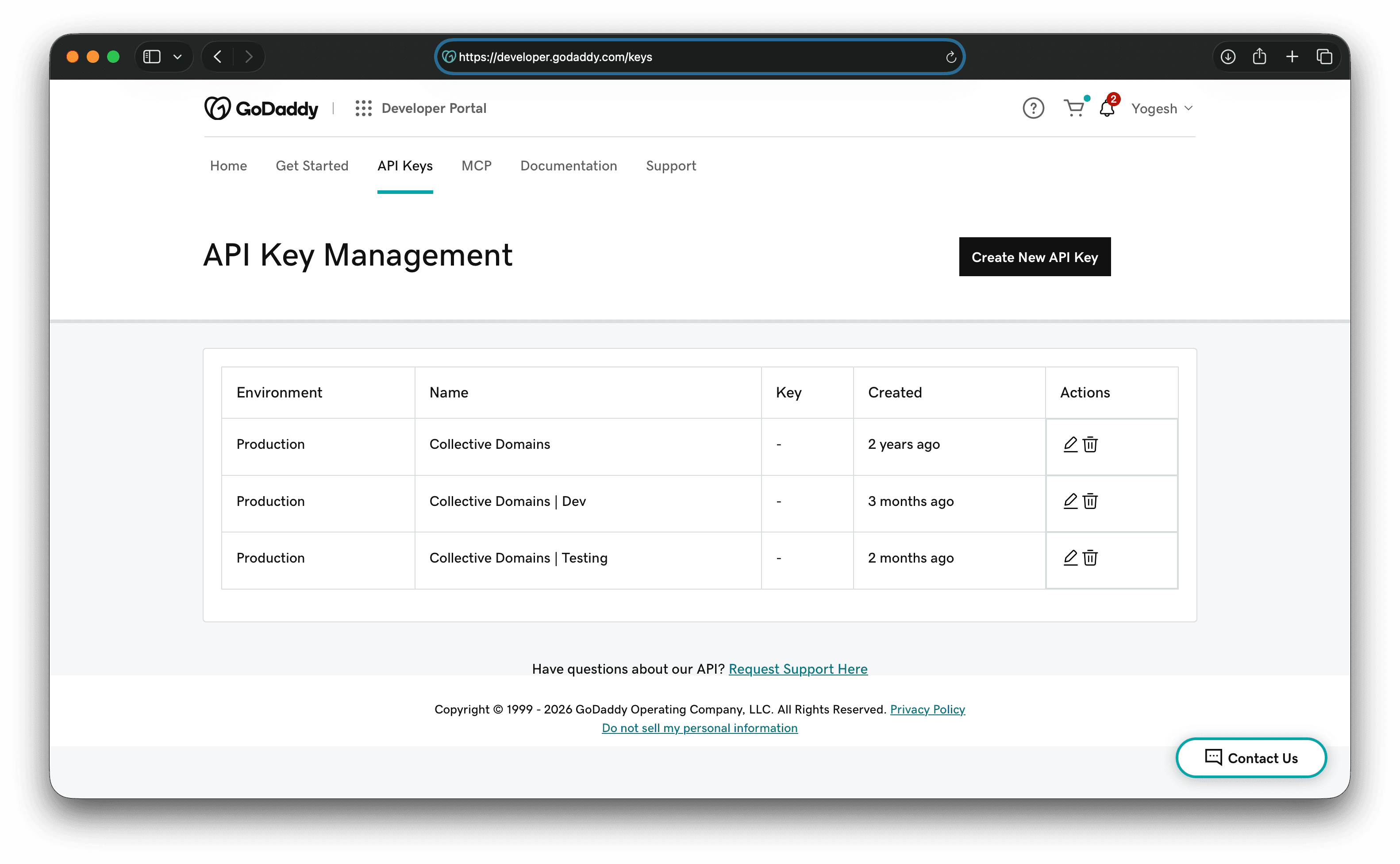
Step 1: Open the developer portal
- Visit developer.godaddy.com/keys.
- Sign in with your GoDaddy account.
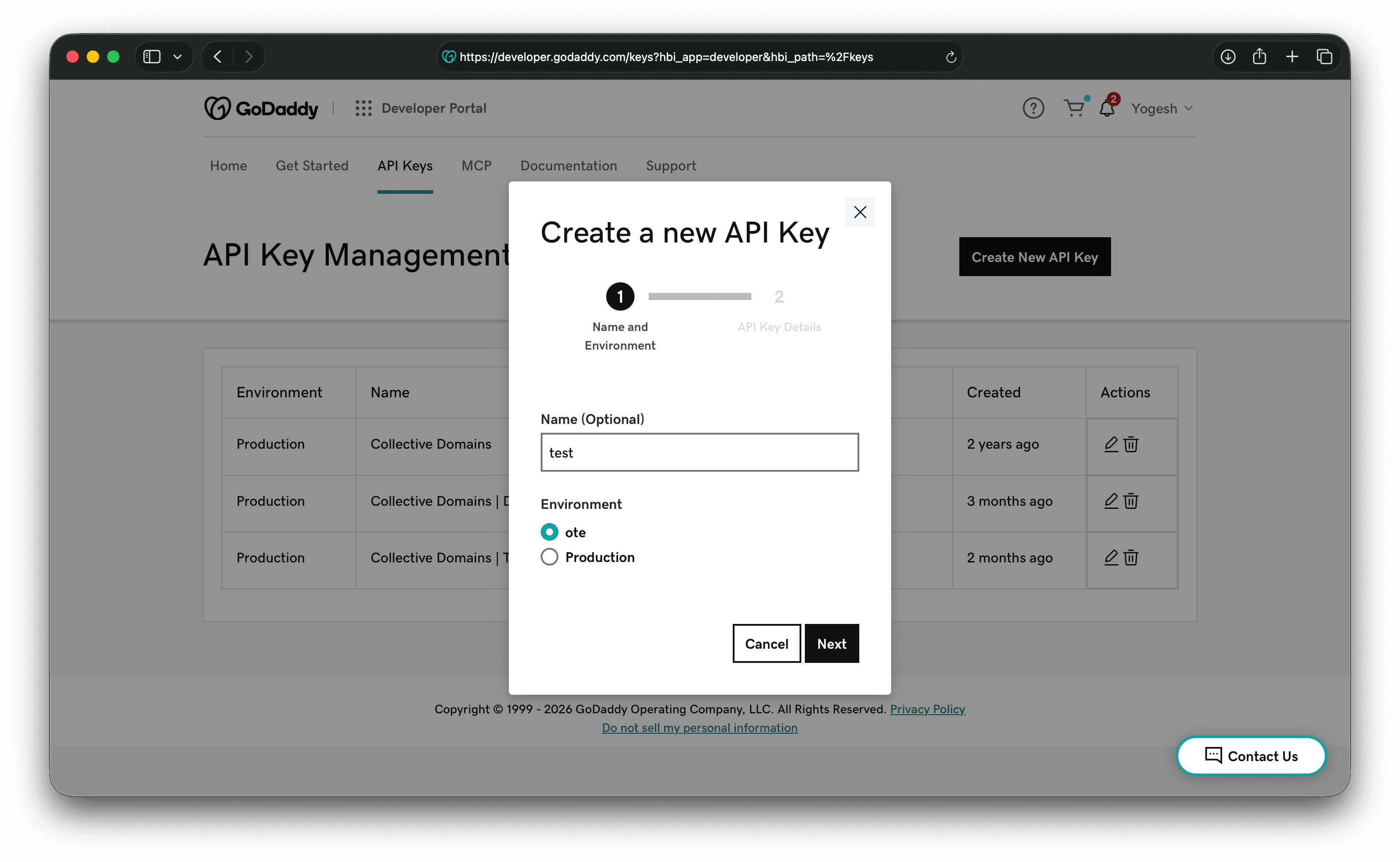
Step 2: Create an API key
- Click Create New API Key.
- Choose Production (not OTE/Test).
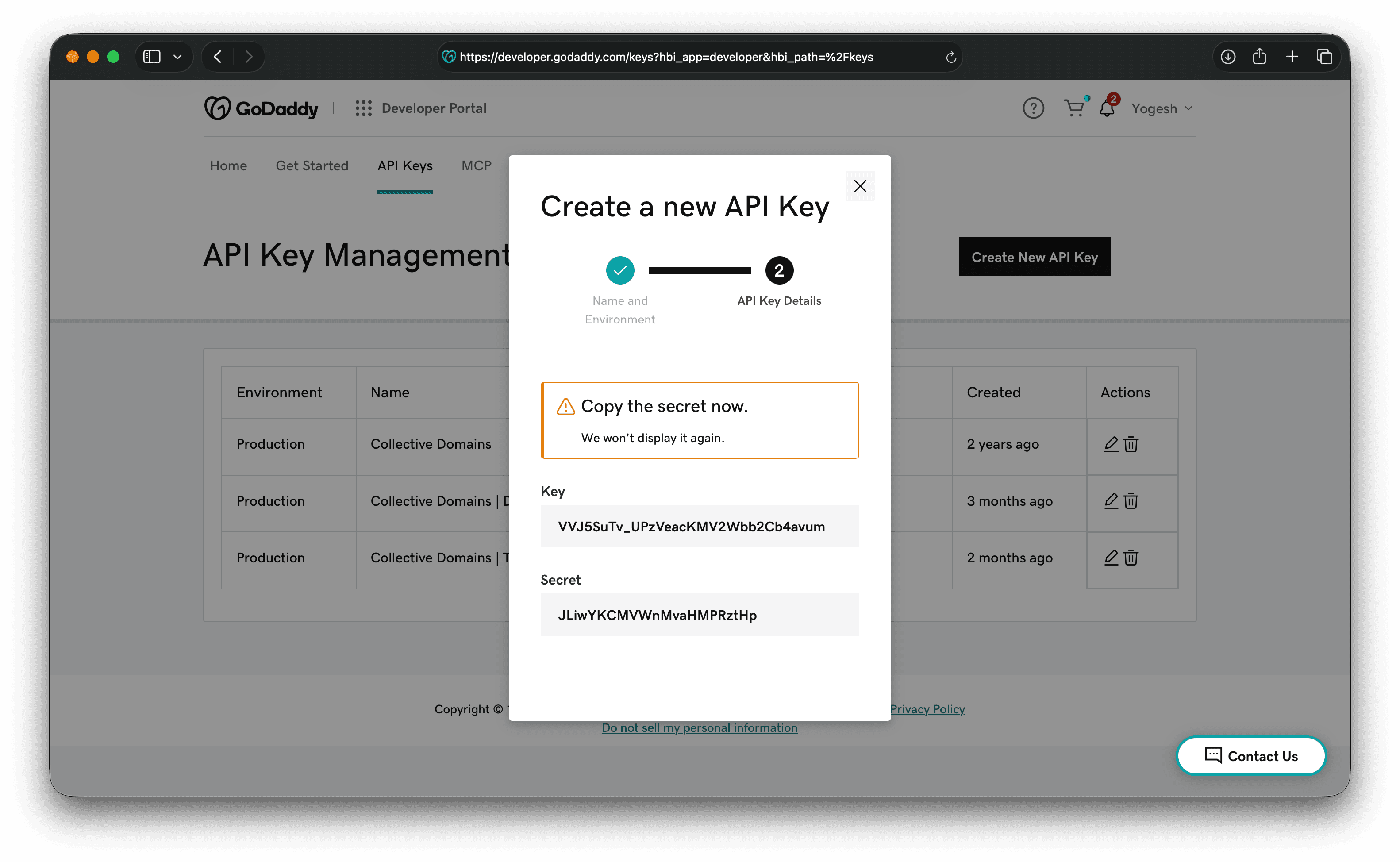
Step 3: Copy credentials
Copy the API key and secret immediately. The secret is shown once.
Step 4: Find your Customer ID
You can find your Customer ID (Shopper ID) in Account Settings or in invoice emails.
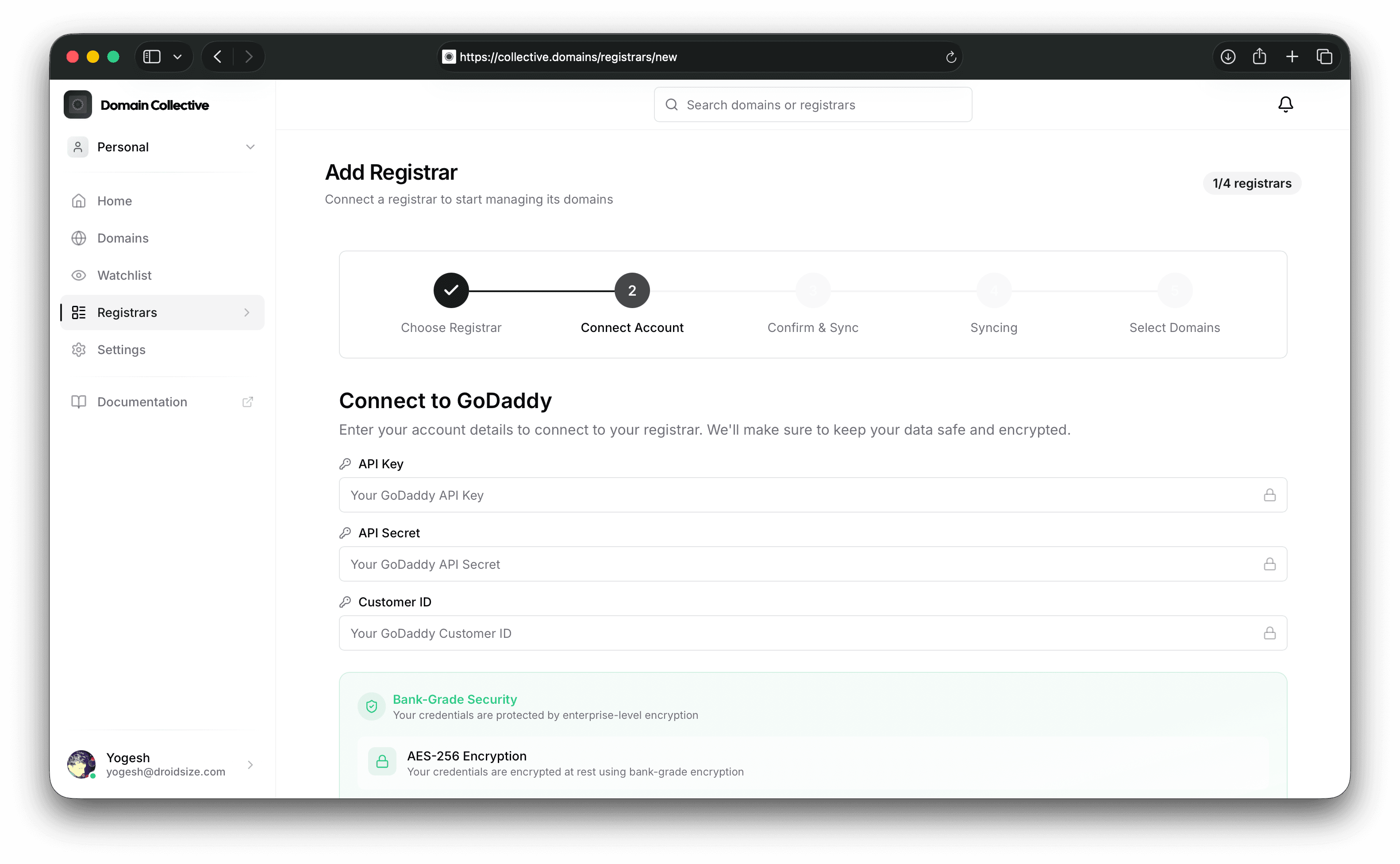
Connect to Domain Collective
Use the API Key, API Secret, and Customer ID in the integration form.
Supported features
- Domain sync
- DNS record viewing
- Nameserver management
- Privacy and auto‑renewal status (where available)
Troubleshooting
- Invalid API key/secret: Ensure you used Production keys and copied without extra spaces.
- Customer ID not found: Use the numeric Shopper ID, not your email.
- Rate limit: Wait one minute and retry.
References
Last verified: February 2026