GoDaddy Integration

Complete guide for integrating GoDaddy with Domain Collective


GoDaddy Integration Guide

GoDaddy is the world's largest domain registrar, managing over 84 million domains. This guide covers everything you need to know about integrating GoDaddy with Domain Collective.

Overview

Integration Details

API Type
REST API (JSON)
Authentication
API Key + Secret
Rate Limits
60 requests/minute
Minimum Domains
None required

Supported Features

  • Domain synchronization

  • DNS record viewing

  • Nameserver management

  • Privacy status

  • Auto-renewal status

Getting Your API Credentials

Step 1: Access Developer Portal

  1. Navigate to developer.godaddy.com
  2. Sign in with your GoDaddy account credentials
  3. You'll be directed to the GoDaddy Developer Portal

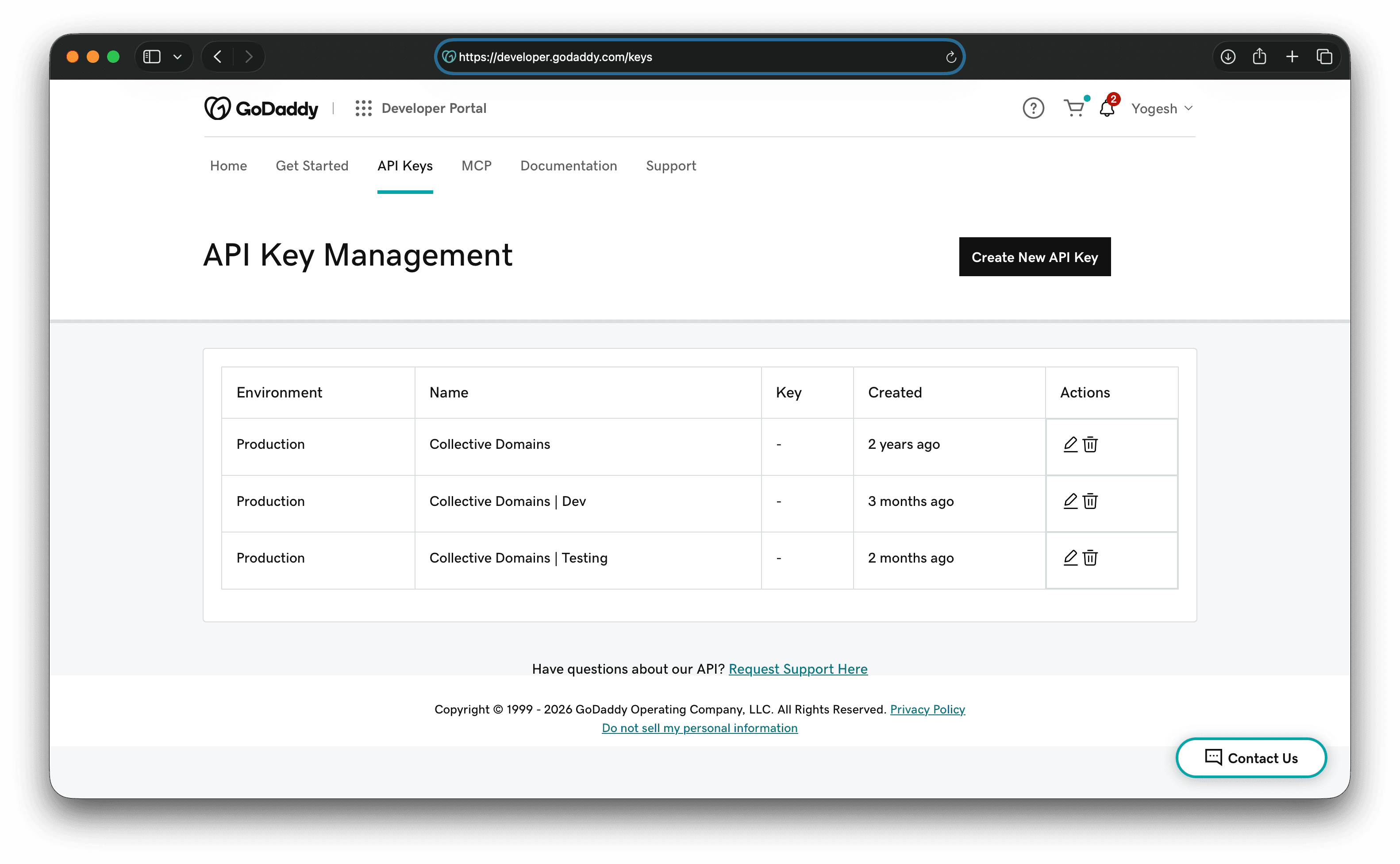
Step 2: Create API Keys

  1. Click "API Keys" in the top navigation
  2. Click "Create New API Key" button
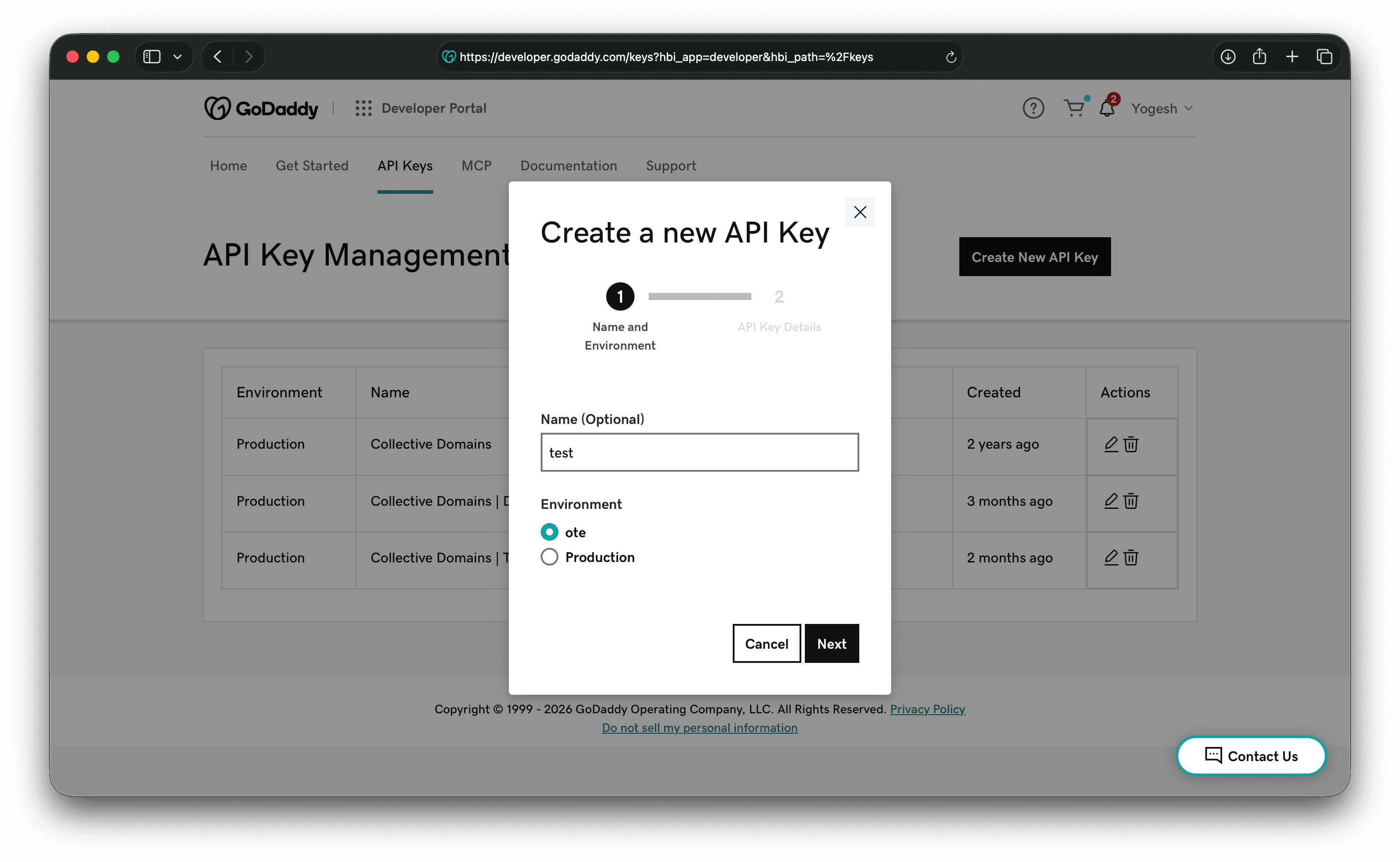
  3. Fill in the form:
    • Name: Give your key a descriptive name (e.g., "Domain Collective Integration")
    • Environment: Select Production (not OTE/Test)
  4. Click "Next" to generate the keys

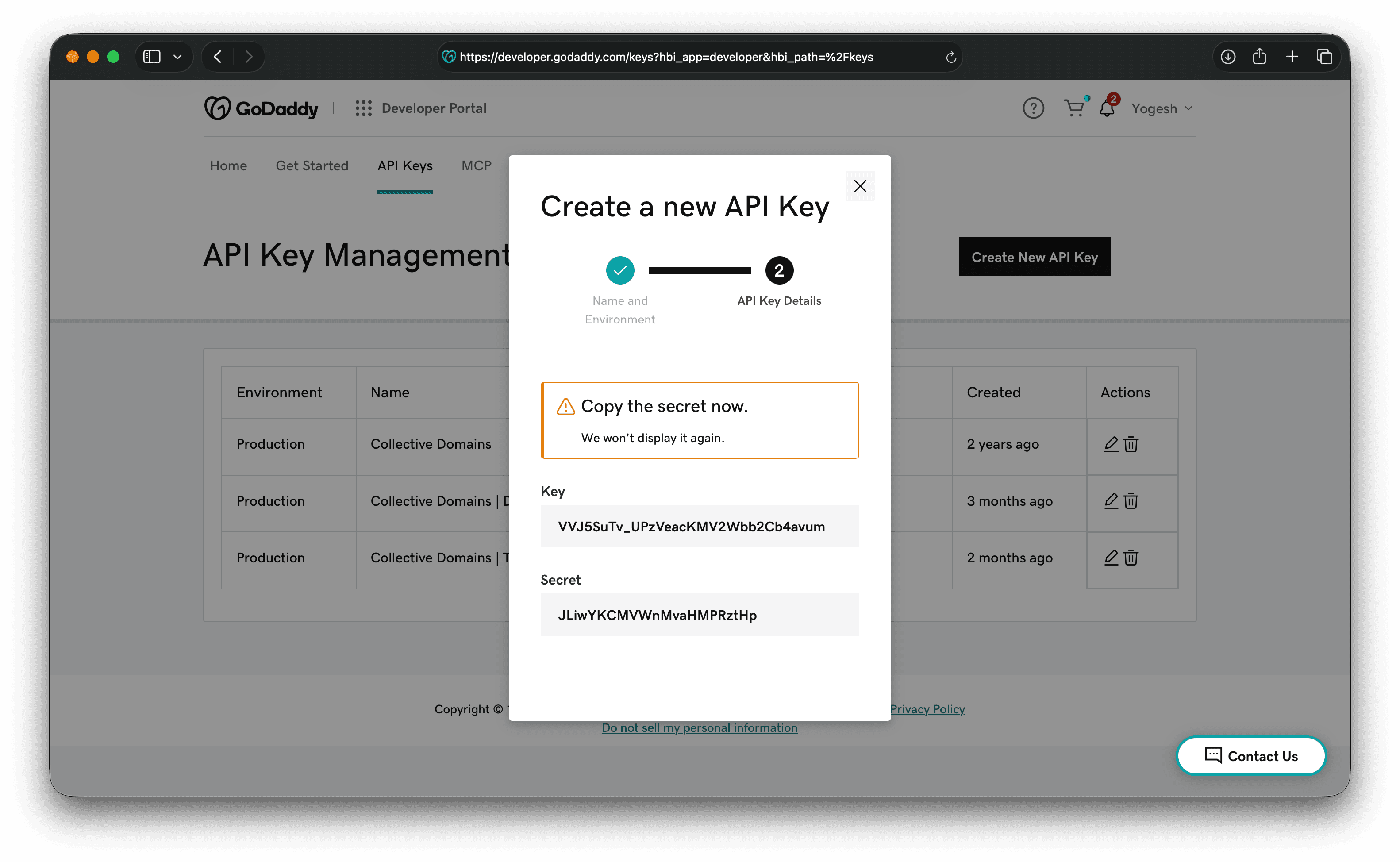
Critical: Your API Secret is shown only once! Copy it immediately and store it securely. You cannot retrieve it later.

Step 3: Locate Your Customer ID

Your Customer ID (also called Shopper ID) can be found:

  1. Log into your GoDaddy account
  2. Go to "My Account""Account Settings"
  3. Your Customer ID is displayed at the top (e.g., 1234567890)

Alternatively:

  • Check any GoDaddy invoice email
  • Look in the URL when logged in: https://account.godaddy.com/products?customerId=YOUR_ID

Step 4: Save Your Credentials

You now have three pieces of information:

API Key:     [32-character string]
API Secret:  [44-character string]
Customer ID: [10-digit number]

Adding to Domain Collective

Integration Process

  1. Navigate to Integrations

    • Log into Domain Collective
    • Click "Integrations" in the sidebar
    • Click "Add New Integration"
  2. Select GoDaddy

    • Click the GoDaddy card
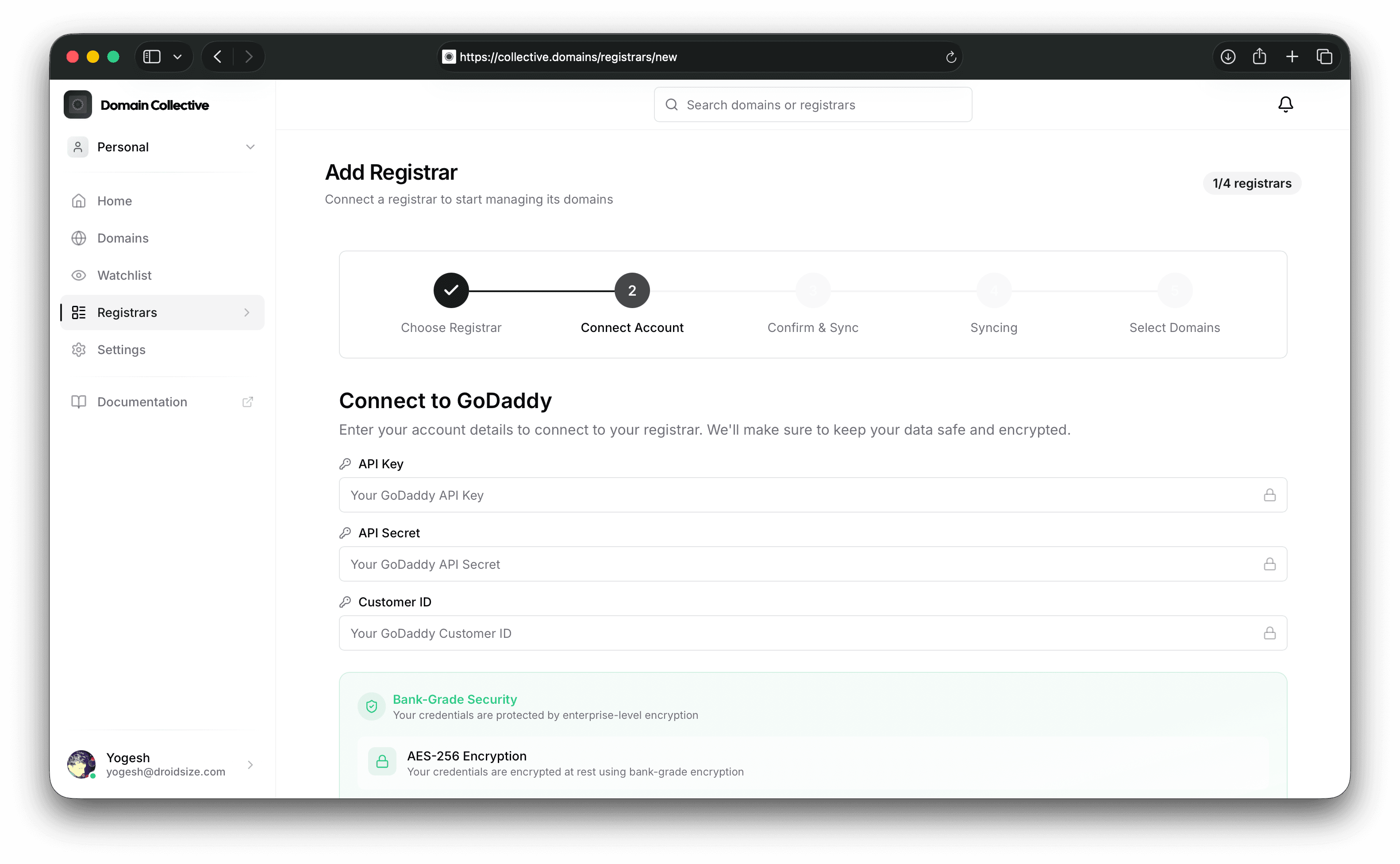
    • The form will appear with three fields
  3. Enter Credentials

    API Key:     [Paste your API key]
    API Secret:  [Paste your API secret]
    Customer ID: [Enter your customer ID]
    
  4. Submit and Sync

    • Click "Add Integration"
    • Automatic sync begins immediately
    • Wait for completion (usually 30 seconds to 2 minutes)

Features and Capabilities

What Gets Synced

Domain Collective syncs the following from GoDaddy:

Data TypeDetails
Domain InfoName, status, registration date, expiry date
DNS RecordsA, AAAA, CNAME, MX, TXT, NS, SRV, CAA
NameserversCurrent nameserver configuration
PrivacyWHOIS privacy protection status
Auto-RenewalAutomatic renewal settings
Lock StatusDomain transfer lock status

Sync Behavior

  • Initial Sync: Automatic when integration is added
  • Manual Sync: Available via "Sync Now" button
  • Sync Duration: 1-5 seconds per domain
  • Rate Limiting: 60 API calls per minute

Managing Your Integration

Manual Synchronization

To manually sync your GoDaddy domains:

  1. Go to the Integrations page
  2. Find your GoDaddy integration card
  3. Click "Sync Now"
  4. Wait for the sync to complete

Updating Credentials

If you need to update your API credentials:

  1. Click "Update Credentials" on the integration card
  2. Enter new API key, secret, or customer ID
  3. Click "Update" to save

Monitoring Sync Status

The integration card shows:

  • Synced: Last sync was successful
  • Syncing: Currently fetching domains
  • Failed: Error occurred (see error message)
  • Authentication Error: Credentials may be invalid

Troubleshooting

Common Issues

"Invalid API Key or Secret"

Causes:

  • Incorrect credentials entered
  • Extra spaces when copying/pasting
  • Using OTE instead of Production keys

Solutions:

  1. Generate new API keys in GoDaddy Developer Portal
  2. Ensure you're using Production environment
  3. Copy credentials without any extra spaces
  4. Update credentials in Domain Collective

"Customer ID Not Found"

Causes:

  • Wrong customer ID entered
  • Using email instead of numeric ID

Solutions:

  1. Find correct ID in GoDaddy account settings
  2. Use numeric customer ID (e.g., 1234567890)
  3. Don't use your email or username

"No Domains Found"

Causes:

  • No active domains in account
  • API permissions issue
  • Domains transferred out

Solutions:

  1. Verify domains exist in GoDaddy account
  2. Check domain status (active, not expired)
  3. Try manual sync after a few minutes

"Rate Limit Exceeded"

Causes:

  • Too many API requests
  • Multiple rapid sync attempts

Solutions:

  1. Wait 1 minute before retrying
  2. Avoid multiple simultaneous syncs
  3. Contact support if persists

API Limitations

GoDaddy's API has some limitations to be aware of:

  1. Rate Limits: 60 requests per minute
  2. Bulk Operations: Not supported for DNS updates
  3. Subdomain Limits: Maximum 500 DNS records per domain
  4. Response Size: Large portfolios may require pagination

Testing Your Integration

Using OTE Environment

GoDaddy provides an OTE (Operational Test Environment) for testing:

  1. Create OTE API keys (separate from production)
  2. Use Customer ID: 1234 for testing
  3. Test domains are provided automatically
  4. No real domains or charges involved

OTE is useful for testing the integration without affecting real domains. However, Domain Collective is designed to work with production credentials.

Verification Steps

After adding your GoDaddy integration, verify:

  1. ✅ All domains appear in dashboard
  2. ✅ Domain counts match GoDaddy account
  3. ✅ Expiry dates are accurate
  4. ✅ DNS records load for domains
  5. ✅ Nameservers display correctly

Advanced Features

Nameserver Management

Update nameservers for GoDaddy domains:

  1. Navigate to domain details page
  2. Click "Edit Nameservers"
  3. Choose preset provider or custom
  4. Save changes

DNS Record Viewing

View DNS records:

  1. Click on any domain
  2. Navigate to "DNS Records" tab
  3. See all record types and values
  4. Export records if needed

Bulk Operations

Coming soon:

  • Bulk nameserver updates
  • Mass DNS record changes
  • Batch domain renewals

Security Considerations

API Key Security

  • Never share your API keys publicly
  • Rotate keys periodically (every 90 days recommended)
  • Monitor usage in GoDaddy Developer Portal
  • Revoke immediately if compromised

Domain Collective Security

Your GoDaddy credentials are protected by:

  • Encryption at rest using industry-standard algorithms
  • HTTPS only for all API communications
  • No logging of sensitive credentials
  • Isolated storage per user account

Best Practices

  1. Regular Syncing

    • Sync weekly to keep data current
    • Sync after making changes in GoDaddy
  2. Credential Management

    • Store API credentials securely
    • Don't reuse API keys across services
    • Update immediately if compromised
  3. Monitoring

    • Check sync status regularly
    • Monitor for expiring domains
    • Review DNS changes
  4. Multiple Accounts

    • You can add multiple GoDaddy accounts
    • Each appears as separate integration
    • Useful for managing client domains

Frequently Asked Questions

Can I use GoDaddy reseller accounts? Yes, reseller accounts work the same way. Use your reseller API credentials and customer ID.

Do expired domains sync? Yes, expired domains are synced and marked with appropriate status. This helps you track and potentially recover recently expired domains.

Can I manage domains from different GoDaddy accounts? Yes, add each GoDaddy account as a separate integration. There's no limit to the number of integrations you can add.

What happens if I revoke API access? The integration will show an authentication error. Your domains remain in Domain Collective but won't sync. Update credentials or delete the integration.

Does Domain Collective make any changes to my domains? Domain Collective only reads domain data by default. Changes like nameserver updates are only made when you explicitly request them.

Getting Help

If you need assistance with your GoDaddy integration:

  1. Check Error Messages: The integration card shows specific error details
  2. Review This Guide: Most issues are covered in troubleshooting
  3. Contact Support: Email support@collective.domains with:
    • Your integration ID (shown on card)
    • Error message screenshot
    • Steps you've tried

Additional Resources


Next: Learn about Namecheap Integration → or explore Features →