Namecheap Integration

Complete guide for integrating Namecheap with Domain Collective


Namecheap Integration Guide

Namecheap is a popular domain registrar known for competitive pricing and excellent customer service. This guide covers everything you need to know about integrating Namecheap with Domain Collective.

Overview

Integration Details

API Type
XML API
Authentication
API Key + Username
Special Requirement
IP Whitelisting Required
Minimum Domains
None required

Supported Features

  • Domain synchronization

  • DNS record viewing

  • Nameserver management

  • WhoisGuard status

  • Auto-renewal settings

Prerequisites

IP Whitelisting Required: Namecheap requires you to whitelist your IP address before using the API. This is a security feature that cannot be bypassed.

What You'll Need

  1. Namecheap Account with at least one domain
  2. API Access Enabled in your account
  3. Static IP Address for whitelisting
  4. Username (your Namecheap username)

Enabling API Access

Step 1: Check API Eligibility

Namecheap API access is available to all accounts. No minimum balance or domain count required!

Step 2: Enable API Access

  1. Log into Namecheap

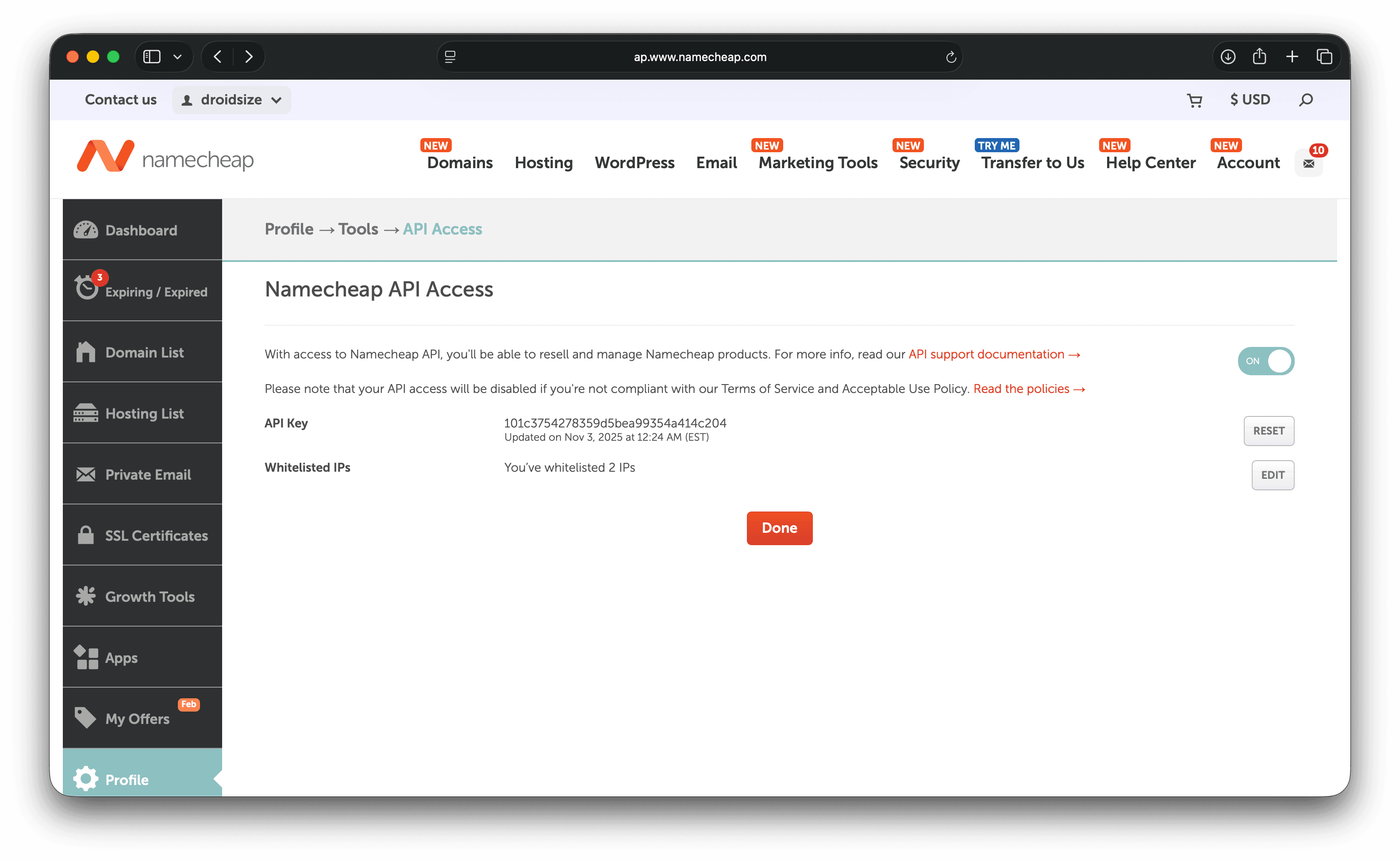
  2. Navigate to API Settings

    • Click your username (top right)
    • Select "Profile""Tools""API Access"
  3. Request API Access

    • Click "Request API Access"
    • Read and accept the terms
    • Submit the request
  4. Approval

    • API access is usually approved instantly
    • You'll receive a confirmation email

Step 3: Whitelist Your IP Address

This is the most critical step for Namecheap API:

  1. Find Your IP Address

  2. Add to Whitelist

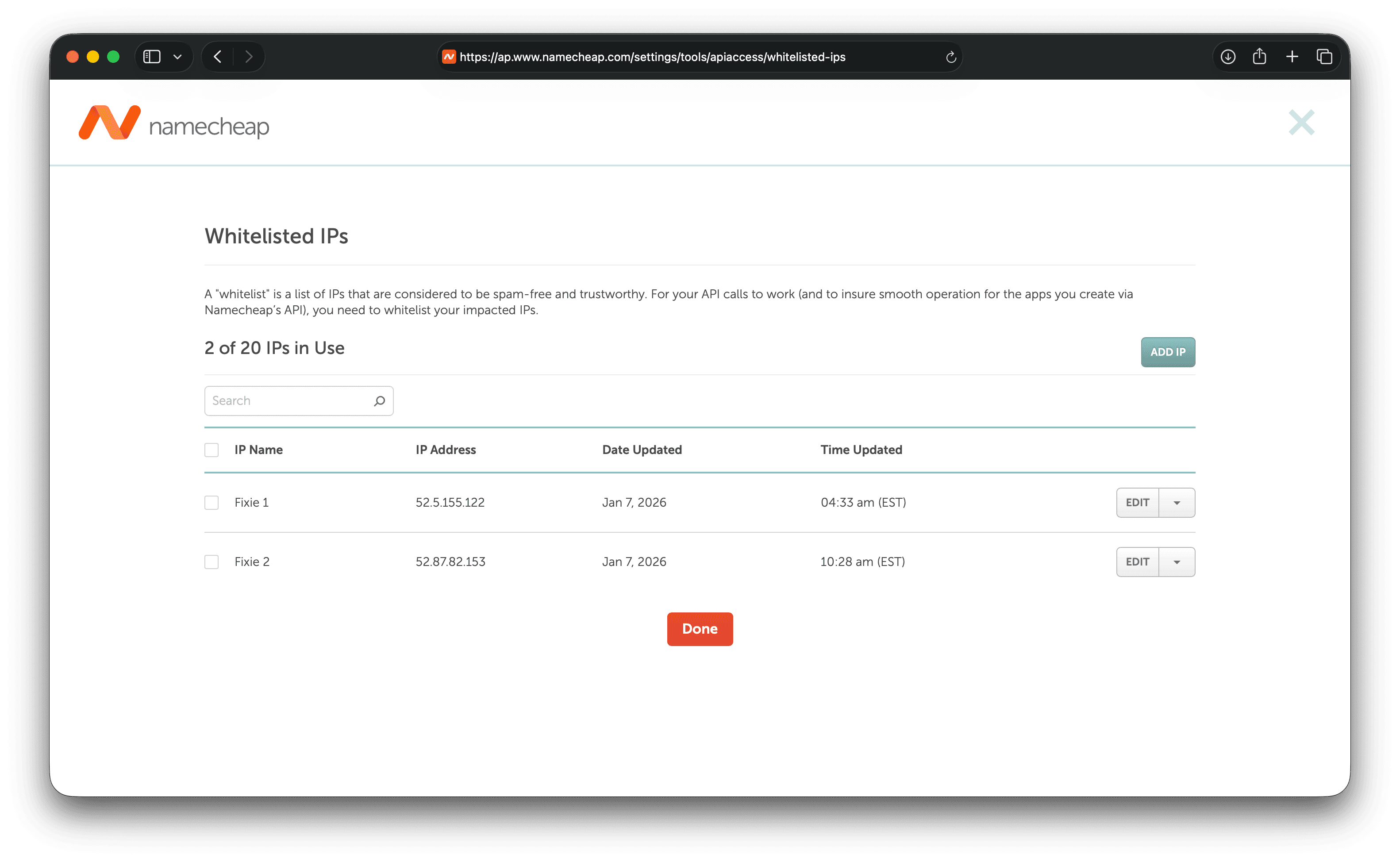
    • In API Access Management page
    • Click "Whitelisted IPs"
    • Click "Add IP"
    • Paste your IP address
    • Add a label (e.g., "Domain Collective")
    • Click "Save"

Dynamic IP? If your IP changes frequently, you'll need to update the whitelist each time. Consider using a VPN or proxy with a static IP.

Step 4: Get Your API Key

  1. In the API Access Management page
  2. Your API Key is displayed (long alphanumeric string)
  3. Copy and save it securely
  4. Note your Username (you'll need both)

Adding to Domain Collective

Integration Process

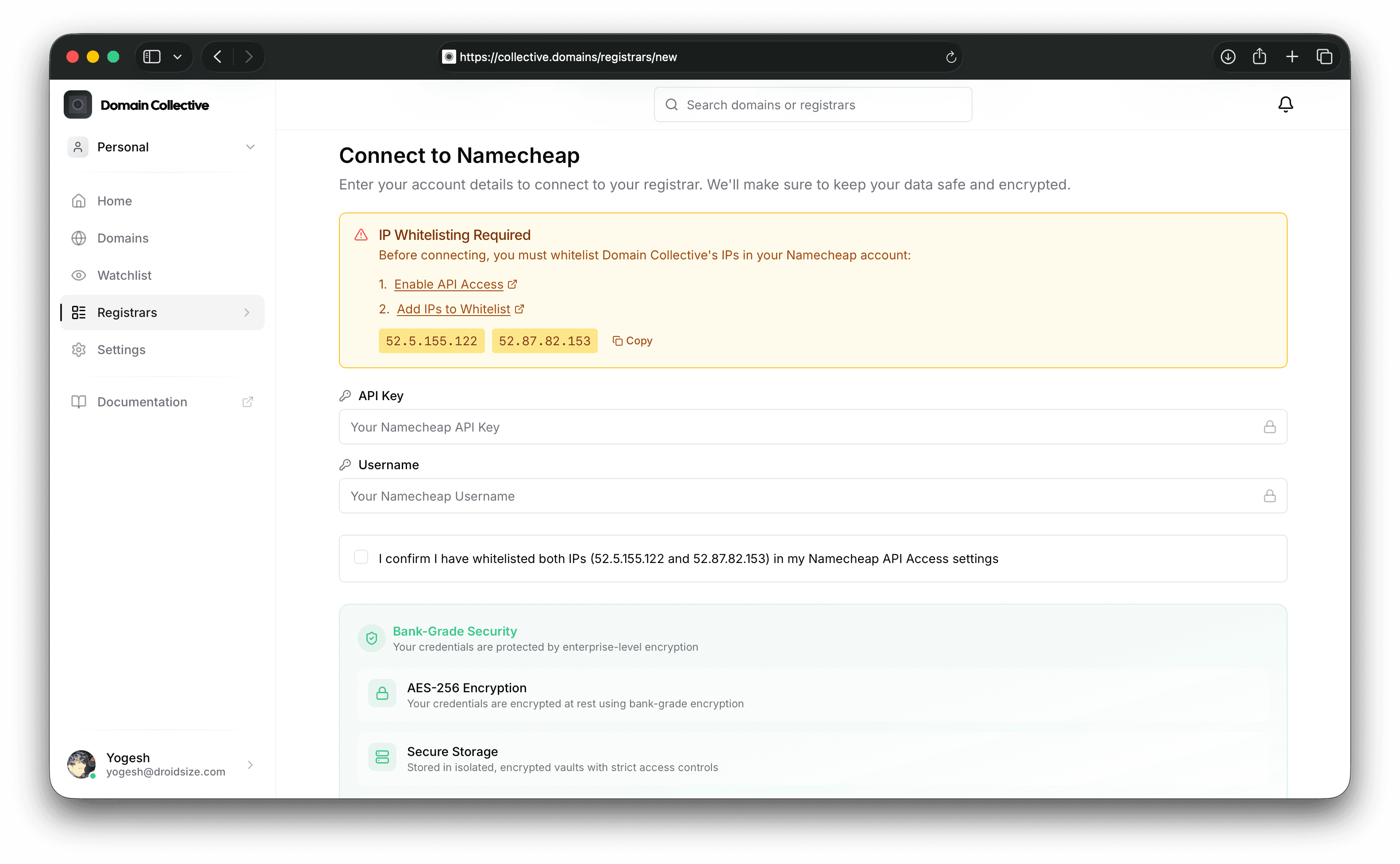
  1. Navigate to Integrations

    • Log into Domain Collective
    • Click "Integrations" in the sidebar
    • Click "Add New Integration"
  2. Select Namecheap

    • Click the Namecheap card
    • The form will appear with two fields
  3. Enter Credentials

    Username:  [Your Namecheap username]
    API Key:   [Your API key from settings]
    
  4. Submit and Sync

    • Click "Add Integration"
    • Automatic sync begins immediately
    • Wait for completion (usually 1-3 minutes)

Understanding Namecheap's API

XML-Based Responses

Namecheap uses XML for API responses, which Domain Collective automatically parses:

<ApiResponse Status="OK">
  <CommandResponse>
    <DomainGetListResult>
      <Domain Name="example.com" />
    </DomainGetListResult>
  </CommandResponse>
</ApiResponse>

API Commands Used

Domain Collective uses these Namecheap API commands:

CommandPurpose
domains.getListFetch all domains
domains.getInfoGet domain details
domains.dns.getHostsRetrieve DNS records
domains.dns.getListCheck nameserver type
domains.dns.setCustomUpdate nameservers

Features and Capabilities

What Gets Synced

Data TypeDetails
Domain InfoName, status, creation date, expiry date
DNS RecordsAll record types (batch retrieval)
NameserversCurrent nameserver configuration
WhoisGuardPrivacy protection status
Auto-RenewalAutomatic renewal settings
Lock StatusTransfer lock status

Sync Behavior

  • Initial Sync: Automatic when integration is added
  • Manual Sync: Available via "Sync Now" button
  • Sync Duration: 2-5 seconds per domain
  • Batch Operations: DNS records fetched in batches

Note: Namecheap's API returns DNS records as a batch. Individual record operations require sending all records.

Managing Your Integration

Manual Synchronization

To manually sync your Namecheap domains:

  1. Go to the Integrations page
  2. Find your Namecheap integration card
  3. Click "Sync Now"
  4. Wait for the sync to complete

Updating Credentials

If you need to update your credentials:

  1. Click "Update Credentials" on the integration card
  2. Enter new username or API key
  3. Click "Update" to save

IP Address Changes

If your IP address changes:

  1. Update the whitelist in Namecheap
  2. No changes needed in Domain Collective
  3. Next sync will use the new IP

Troubleshooting

Common Issues

"Error 1011: IP Not Whitelisted"

This is the most common error!

Causes:

  • IP not added to whitelist
  • IP address changed
  • Wrong IP whitelisted

Solutions:

  1. Check current IP at whatismyip.com
  2. Log into Namecheap
  3. Go to Profile → Tools → API Access
  4. Add/update IP in whitelist
  5. Wait 5 minutes for propagation
  6. Try sync again

"Invalid API Key"

Causes:

  • Wrong API key entered
  • API access not enabled
  • Username incorrect

Solutions:

  1. Verify API is enabled in Namecheap
  2. Copy API key again (no spaces)
  3. Ensure username is correct (not email)
  4. Regenerate API key if needed

"No Domains Found"

Causes:

  • No active domains
  • API permissions issue
  • Account suspension

Solutions:

  1. Log into Namecheap directly
  2. Verify domains exist and are active
  3. Check account status
  4. Contact Namecheap support

"Timeout Error"

Causes:

  • Large number of domains
  • Network issues
  • API server issues

Solutions:

  1. Wait and retry after 5 minutes
  2. Check Namecheap system status
  3. Try during off-peak hours
  4. Contact support if persists

API Limitations

Be aware of these Namecheap API limitations:

  1. IP Whitelisting: Mandatory, cannot be disabled
  2. DNS Operations: Batch only (all records at once)
  3. Rate Limits: Undocumented but enforced
  4. Date Format: Uses MM/DD/YYYY format
  5. Boolean Values: Returns "true"/"false" strings

Testing Your Integration

Using Sandbox Environment

Namecheap provides a sandbox for testing:

  1. Access Sandbox

  2. Sandbox Credentials

    • Different from production
    • Separate API key needed
    • Same IP whitelisting required
  3. Testing Process

    • Add sandbox credentials to Domain Collective
    • Test all operations safely
    • No real domains affected

Verification Steps

After adding your Namecheap integration:

  1. ✅ All domains appear in dashboard
  2. ✅ Domain counts match Namecheap account
  3. ✅ WhoisGuard status shows correctly
  4. ✅ DNS records load properly
  5. ✅ Nameservers display accurately

Advanced Features

Nameserver Management

Update nameservers for Namecheap domains:

  1. Navigate to domain details
  2. Click "Edit Nameservers"
  3. Choose provider or custom
  4. Changes sent as batch operation

DNS Record Management

View DNS records:

  1. Click on any domain
  2. Navigate to "DNS Records" tab
  3. All records shown together
  4. Note: Updates require all records

WhoisGuard Integration

WhoisGuard (privacy protection) status:

  • Automatically detected
  • Shown as "Privacy: Protected"
  • Cannot be toggled via API

Security Considerations

API Security

  • IP Whitelisting: Primary security measure
  • API Key Rotation: Regenerate periodically
  • Account Security: Enable 2FA on Namecheap
  • Monitor Access: Check API logs regularly

Domain Collective Security

Your Namecheap credentials are protected by:

  • Encrypted Storage: Industry-standard encryption
  • Secure Transport: HTTPS for all API calls
  • No Credential Logging: Sensitive data never logged
  • User Isolation: Complete data separation

Best Practices

  1. IP Management

    • Use static IP if possible
    • Update whitelist promptly when IP changes
    • Consider VPN for consistent IP
  2. Regular Syncing

    • Sync weekly for accuracy
    • Sync after Namecheap changes
    • Monitor sync status
  3. DNS Management

    • Understand batch operations
    • Keep record of all DNS entries
    • Test changes carefully
  4. Security

    • Enable 2FA on Namecheap
    • Rotate API keys quarterly
    • Monitor for unusual activity

Working with Dynamic IPs

If you have a dynamic IP address:

Option 1: VPN Service

  • Use VPN with static IP
  • Whitelist VPN IP in Namecheap
  • Connect via VPN for syncs

Option 2: Proxy Server

  • Set up proxy with static IP
  • Configure Domain Collective to use proxy
  • Whitelist proxy IP

Option 3: Manual Updates

  • Update whitelist when IP changes
  • Use IP monitoring service
  • Automate if possible

Frequently Asked Questions

Why is IP whitelisting required? Namecheap requires IP whitelisting as a security measure to prevent unauthorized API access. This cannot be disabled or bypassed.

Can I use Namecheap reseller accounts? Yes, reseller accounts work the same way. Use your reseller credentials and ensure your IP is whitelisted.

How do I handle DNS record updates? Namecheap requires sending all DNS records when making updates. Domain Collective handles this automatically, but be aware that partial updates aren't possible.

What's the difference between sandbox and production? Sandbox is for testing with fake domains and no charges. Production is your real account with actual domains. Credentials are not shared between them.

Can I add multiple Namecheap accounts? Yes, you can add multiple Namecheap accounts as separate integrations. Each needs its own API key and IP whitelisting.

Getting Help

If you need assistance with your Namecheap integration:

  1. Check Whitelist First: 90% of issues are IP-related
  2. Review Error Messages: Specific errors shown on integration card
  3. Test in Sandbox: Isolate issues safely
  4. Contact Support: Email support@collective.domains with:
    • Integration ID
    • Error screenshot
    • Current IP address
    • Steps attempted

Additional Resources


Next: Learn about Gandi Integration → or explore Features →